

Use SeekOut in Microsoft Copilot
Bring SeekOut's talent search and recruiting workflows into Microsoft Copilot — either by building your own agent on the SeekOut connector in Copilot Studio today, or with the turnkey SeekOut agent for Microsoft 365 Copilot (coming soon).
SeekOut is available in Microsoft Copilot in two ways. They serve different needs — pick based on how your team wants to work, and use either or both with the same SeekOut account.
- Connector agent (available now). A maker builds a Copilot Studio agent on the SeekOut MCP server and publishes it to your organization. Best for teams and admins who want to build a custom agent — or a Power Automate / Power Apps automation — on top of SeekOut. You see whatever your agent is built to return, and the same SeekOut tools (search, profiles, markets, workspaces, contacts, ATS export) are available to it.
- SeekOut agent for Microsoft 365 Copilot (coming soon). The turnkey, no-build option — add the agent and ask in plain language, and SeekOut's results appear as rich, interactive cards (candidate lists, profiles, market views) right inside Copilot Chat, Teams, Outlook, and Office. Best for recruiters, sourcers, and hiring managers who want SeekOut in Copilot with no setup.
For now, the connector agent is the only option — build a custom SeekOut agent in Copilot Studio (or a Power Platform automation) using the steps below. The turnkey SeekOut agent is on the way, and once it ships you'll have both paths to choose from. Either way, each user signs in once with their own authenticated SeekOut account — results and actions are scoped to that user's SeekOut entitlements, and nothing is published externally.
Prerequisites
- An active SeekOut account
- Microsoft Copilot Studio access with a valid license
- A Microsoft 365 Copilot license
- Microsoft 365 admin access (for the publish-approval step)
Setup
Build a Copilot Studio agent that uses the SeekOut MCP server as its tool layer, then publish it to everyone in your org. SeekOut keeps all of its query-building intelligence — you don't re-author any search logic.
Go to copilotstudio.microsoft.com and sign in. Open Agents → Create → New agent, then choose Configure to set the fields yourself.
Name it SeekOut Sourcing Agent and paste this description:
SeekOut Sourcing Agent helps recruiters and hiring teams source and engage talent using SeekOut. Search public profiles plus specialized pools (GitHub, healthcare, nursing, academic), your ATS pipeline, and your own internal employees; run role intakes, build hiring-manager shortlists, find similar candidates, size and compare markets, and surface diversity and compensation context. Save searches and candidates to workspaces, retrieve emails and phone numbers, export to your ATS, and draft personalized outreach.Under Select your agent's model, choose Claude Sonnet 4.6.
Paste these instructions. They're intentionally slim — the SeekOut MCP server ships its own tuned operating guidance and per-tool descriptions, so the agent only needs persona, scope, and voice.
You are the SeekOut Sourcing Agent — a sourcing and recruiting assistant for recruiters, sourcers, hiring managers, and talent/RecOps teams.

## Scope
- Help with sourcing, shortlists, market sizing, company discovery, candidate evaluation, contact retrieval, ATS export, and outreach — across SeekOut's public, GitHub, healthcare, nursing, academic, ATS-pipeline, and internal-employee pools.
- Answer these only through the SeekOut tools. Never invent candidates, counts, contacts, or company data, and don't answer sourcing questions from your own knowledge.
- Stay in role: if there's no SeekOut tool for a request, say so and suggest what the user can do manually in SeekOut.

## Working with the SeekOut tools
- Follow the workflow guidance the SeekOut tools and skills provide. Load the SeekOut skill that matches the user's intent before searching, and follow its steps. Let the tools handle query building, filters, verticals, and result-readiness — don't override their guidance with your own procedure.
- Confirm with the user before any action that retrieves contact info, exports, saves to a workspace, or sends outreach.

## Voice
- Concise, professional, recruiter-friendly. Candidate summaries as short bullets (name, current title + company, location, one signal); a one-line "why" for shortlists; tables only for explicit comparisons. Keep internal/technical details out of replies.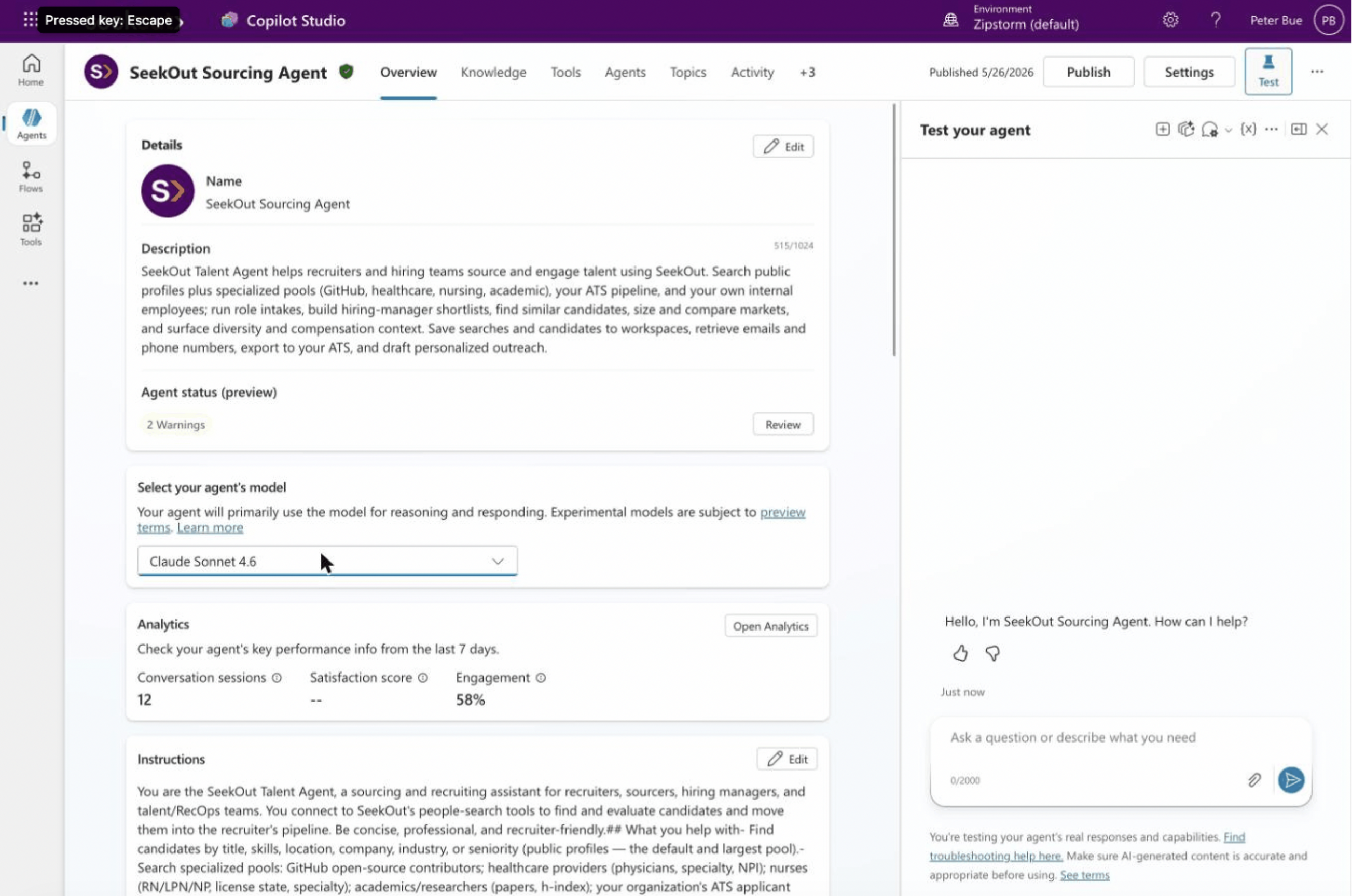
Click Save.
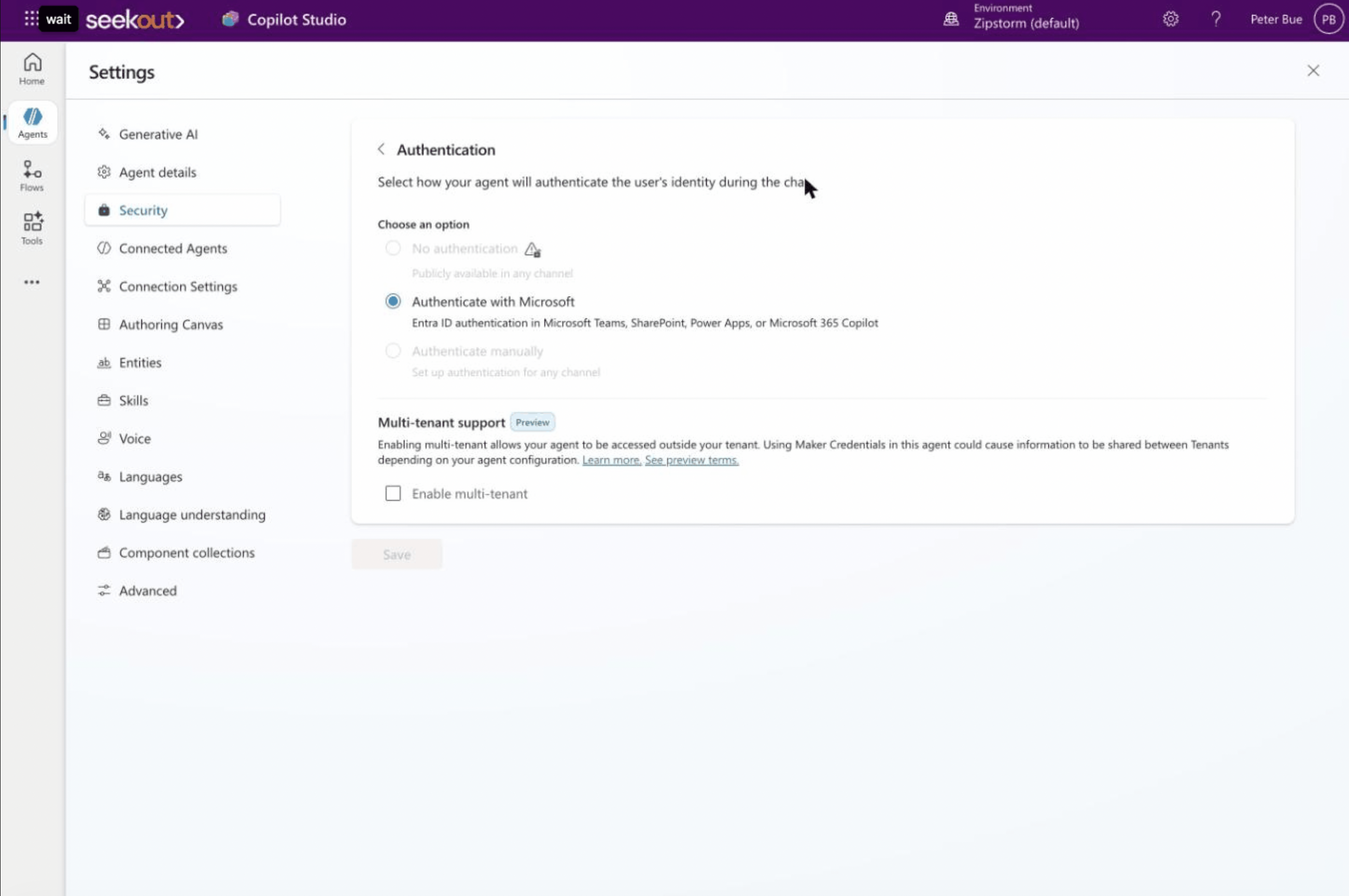
Open Settings → Security → Authentication and select Authenticate with Microsoft (Entra ID). Leave multi-tenant unchecked for an internal build, then Save. This controls who in your org can use the agent — it's separate from the SeekOut sign-in in the next steps.
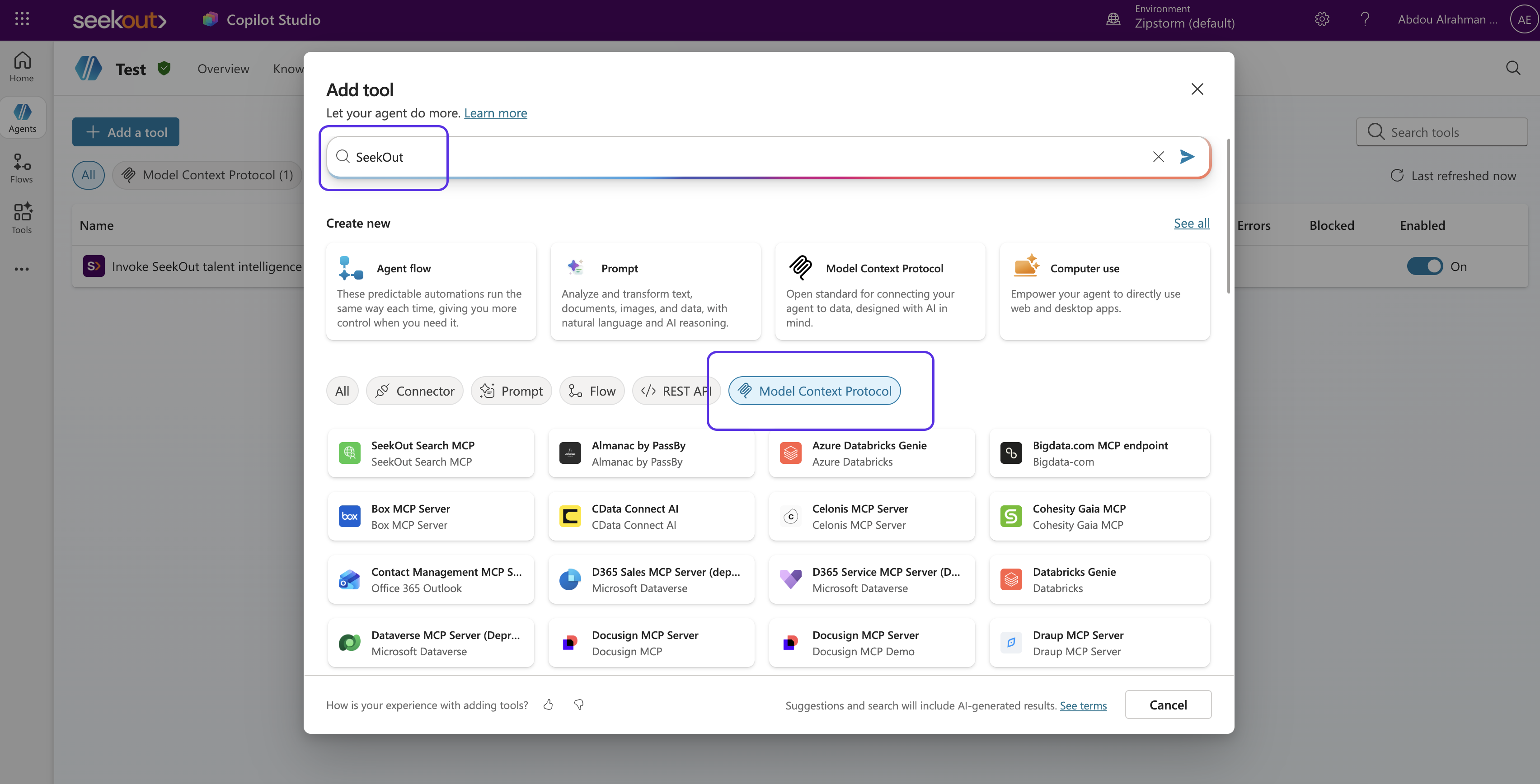
Open the Tools tab → Add a tool. In the tool picker, select the Model Context Protocol filter and search for SeekOut.

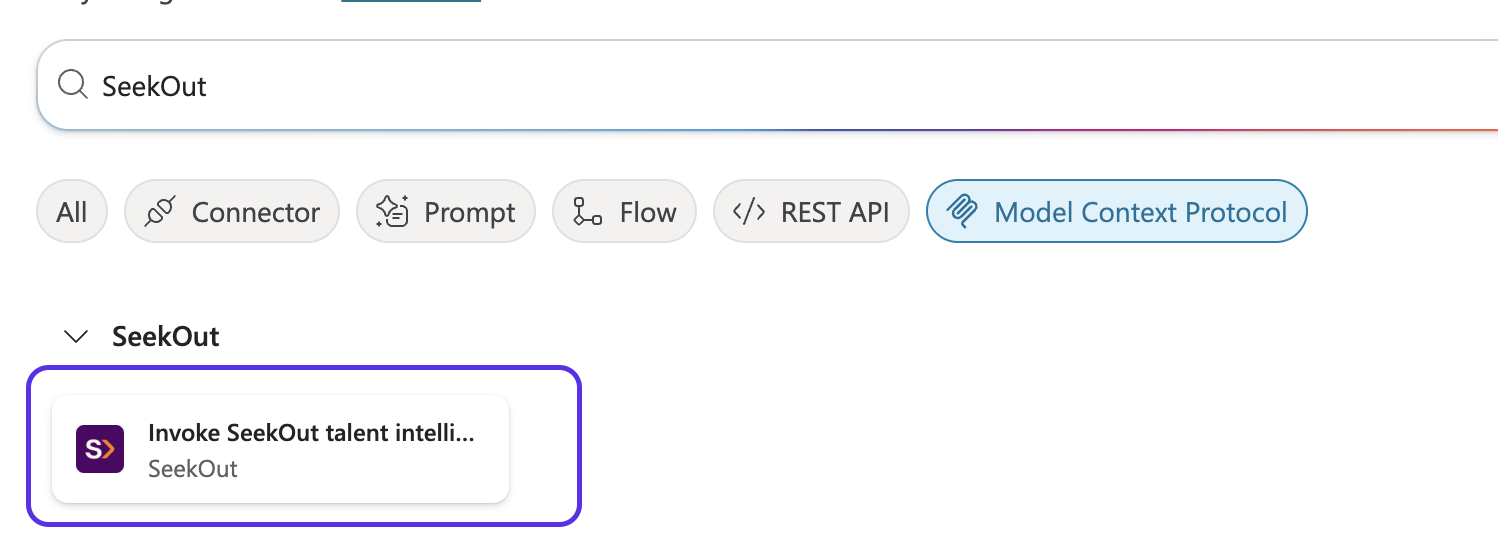
Select Invoke SeekOut talent intelligence, then Create a connection. You'll be redirected to sign in with your SeekOut account to authorize the connection.
Open Settings → Orchestration and enable generative orchestration. MCP tools are only callable with this on, and it lets the agent choose SeekOut tools dynamically based on the user's request.
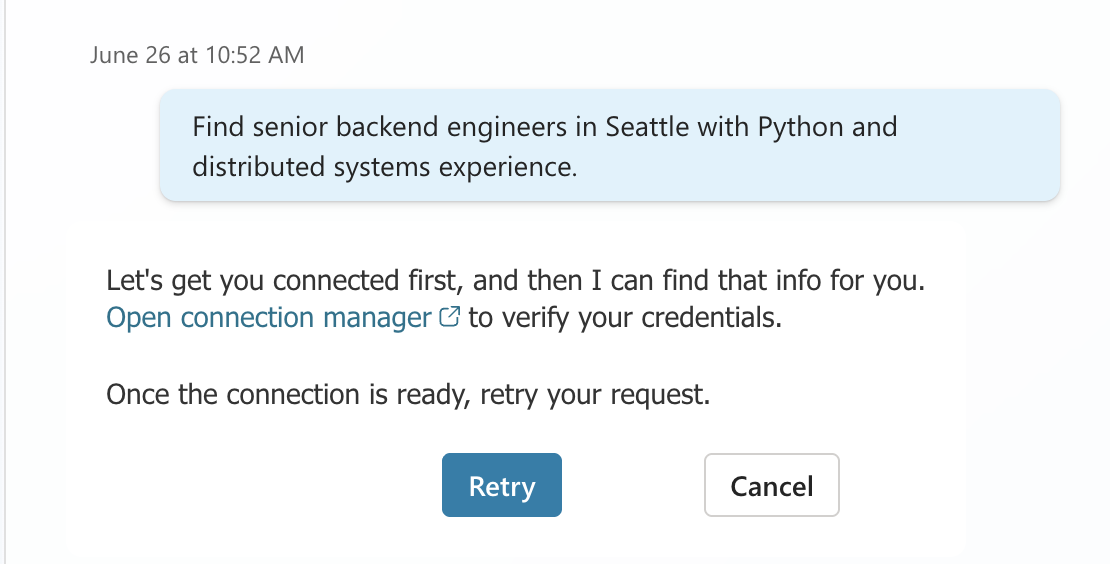
In the test pane, try "Find senior backend engineers in Seattle with Python and distributed systems experience." The first time you run a SeekOut action, the agent prompts you to connect — open the connection manager to verify your credentials, then retry.
Open the +1 overflow menu → Channels → the Microsoft 365 and Microsoft Teams tile. Under Turn on Microsoft 365, check Make agent available in Microsoft 365 Copilot, set Availability options to Show to everyone in my org, then Save and Publish.

A Microsoft 365 admin signs in to the Teams Admin Center, opens Teams apps → Manage apps, finds SeekOut Sourcing Agent, and sets its status to Allowed. Optionally add it to a Teams setup policy to pre-install it for users.
Users find the agent in Microsoft 365 Copilot under All agents / Agent Store. Each user signs in with their own SeekOut account the first time they run a SeekOut action.
The turnkey way to use SeekOut in Copilot — no building required. Add the SeekOut agent, ask in plain language, and SeekOut's results appear as interactive cards right inside Microsoft 365 Copilot (Copilot Chat, Teams, Outlook, and Office).
In the meantime, use the connector agent tab to build and publish a SeekOut agent in Copilot Studio today. Questions? Reach us at support@seekout.com.
Frequently Asked Questions
Do users need any extra licenses beyond SeekOut and Copilot?
No. Each user authenticates with their existing SeekOut credentials over OAuth, and results respect that user's SeekOut entitlements. No additional licenses are required beyond standard SeekOut access and your Microsoft 365 Copilot license.
The agent says it can't connect when I run a search
On first use, open the connection manager from the agent's prompt (or Connection Settings in the agent's settings), confirm the SeekOut connection is signed in, and retry your request. If issues persist, contact your Customer Success Manager or support@seekout.com.