

Set Up SeekOut MCP as a Custom Connector in Claude.ai
Add SeekOut as a custom connector in Claude.ai to search talent and run recruiting workflows on Free, Pro, Max, Team, and Enterprise plans.
SeekOut MCP is available as a custom connector in Claude.ai across all plan tiers. Personal accounts (Free, Pro, and Max) can add the connector directly from their own settings. On Team and Enterprise plans, an Owner or Primary Owner must first add the connector to the organization before individual members can authenticate it.
Prerequisites
- An active SeekOut account
- A Claude.ai account on any paid plan (Free users may add one custom connector)
Setup
Click Add custom connector and enter the MCP Server URL below, then complete the prompts to finish adding the connector.
https://seekout-search-mcp.seekout.io/toolsWhen prompted, sign in with your SeekOut account to authorize the connection.
You're all set. Open a new conversation and try a prompt like "Use SeekOut MCP to find senior engineers in Austin with Kubernetes experience."
Ask a Claude Owner or Primary Owner to open Organization settings → Connectors, click Add connector, choose Custom → Web connector, and enter the MCP Server URL below.
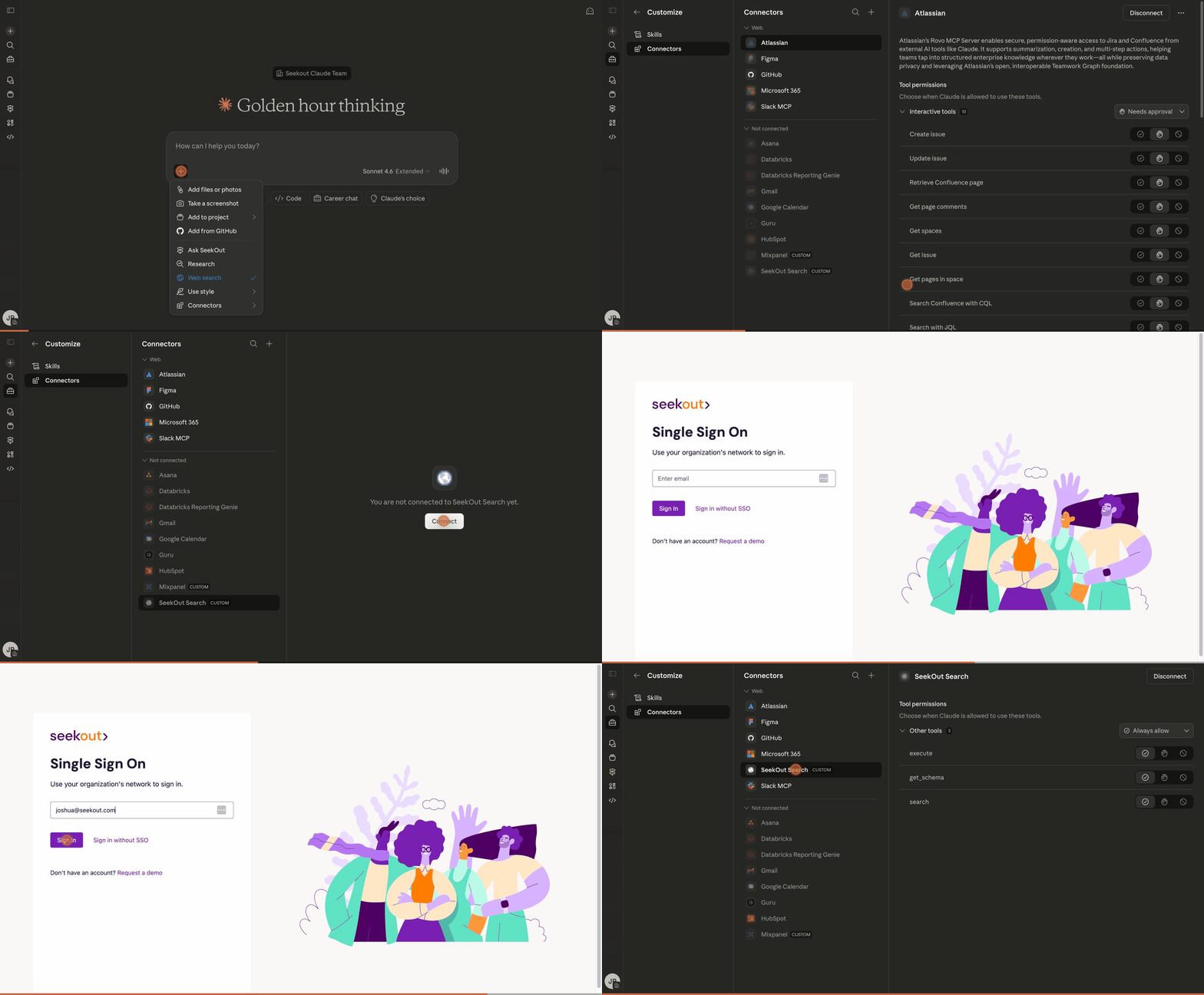
https://seekout-search-mcp.seekout.io/toolsAfter the organization connector is added, every team member goes to their own Customize → Connectors settings, finds the SeekOut connector in the list, and clicks Connect.
When prompted, sign in with your SeekOut account to complete the individual authentication step.
You're ready to go. Start a conversation and try "Use SeekOut MCP to compare engineering talent markets in Seattle vs. Denver."
Walkthrough
Adding the SeekOut connector and signing in with SSO. Click to enlarge.
Frequently Asked Questions
SeekOut shows "Blocked by your admin" after enabling HIPAA Compliance in Claude Enterprise
When your organization turns on HIPAA Compliance in Claude Enterprise, Anthropic blocks all custom connectors by default — SeekOut will appear as "Blocked by your admin" and reconnecting will not restore tool access. Nothing has changed on SeekOut's side; your account and MCP Server URL are still valid.
To re-enable SeekOut, ask your Claude administrator to contact their Anthropic account team and request that the SeekOut connector be permitted within your HIPAA-compliant workspace.